

Simple in/out time card you can manage and track your attendance time!
Simple in/out time card you can manage and track your attendance time and other information of your daily work!
Create your shifts patterns so it can be used for a person who works shifts as well.
Save your daily working information, it will be displayed in the monthly list of the time card and on the calendar.
Manage and track absence, paid leave, TOIL (time off in lieu )'s total days and support overtime (OVT1), (OVT2) hours,Working Early(EA) hours.
※ Платеть без рекламы
From "Menu", select "Base Setting" and create your working shifts patterns. Select "Base Setting" → move to Setting screen.
*Setting screen*
1. Input your company's Start day of counting. When you tap this button, a calculator will be popup.
2. Create patterns. Tap each pattern, then move to Pattern setting screen.
*Pattern Setting screen*
1. Tap "Color" button to select a color for each pattern. There are 10 colors to choose from. *This color will be displayed on the calendar.
2. Input your company's Base working hours, Overtime hours OVT1 and OVT2.
3. How to input break time: For example, you have one hour break. Input "01:00" and tap "OK".
4. When you finish entering all, tap "OK", then move back to Setting screen.
5. Tap "Ok" again in the Setting screen to save the data.
6. You can create 3 different patterns with the same way and can be also changed pattern name.
*Календарь*
Buttons from the left-bottom of the calendar;
"Today" button: Tap this button to go back to today's date.
"Left" and "Right" buttons: You can move the date to right and left.
"Time Card" button: Move to Time Card screen. You can see here the monthly attendance record.
*How to enter attendance time and other information of your daily work.*
1. Tap "Touch here to enter" of the lower part of the calendar.
2. Then move to Working Hours screen.
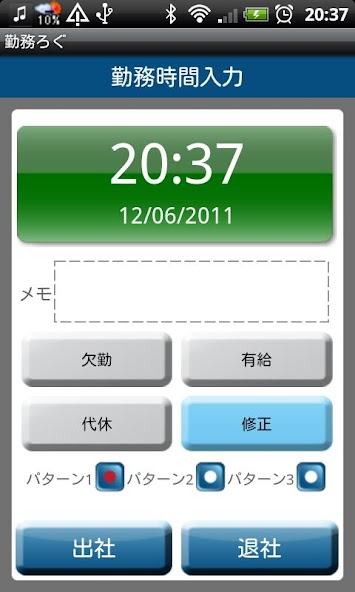
*Working Hours screen*
From top;
1. Time&Day display
2. Memo: You can save notes here.
3. There are 3 buttons;
Work absence
Оплачиваемый отпуск
TOIL ( time off in lieu )
Select one for your day. *When tap these buttons, move to the calendar automatically.
4. When you want to edit the data you have entered, tap "Edit" button, then move to Edit screen.
5. Select a pattern.
6. When you tap "IN" ( arriving time at work ) button, the time will be automatically saved.
7. When you tap "OUT" ( leaving time from work ) button, the time will be automatically saved.
8. When you want to edit arriving time and leaving time, tap "Edit" button.
*Time Card screen*
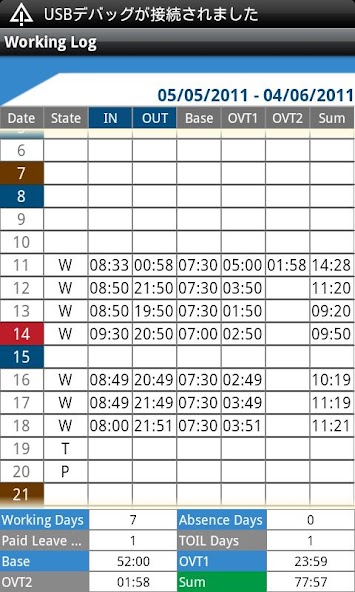
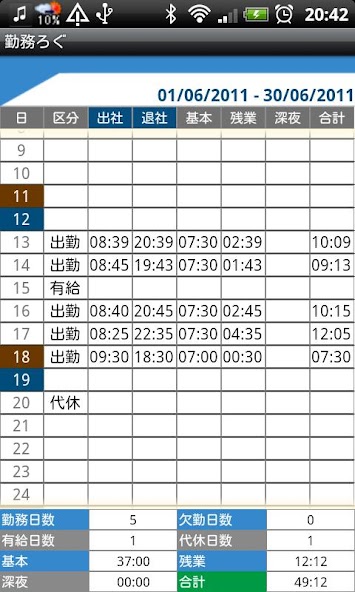
1. Tap "Time Card" button on the calendar, then move to the Time Card screen. Working Days, Absence Days, Paid Leave Days, TOIL Days, Base, Overtime (OVT1 & OVT2), and Sum will be displayed in the list so you can track the attendance records at one view.
2. Press "Menu" button, then select "Email" button to send the time card records by email.
*Menu Buttons*
1. Base Setting: Create your working shift patterns and start day of counting here.
2. Mark: Tap "Mark" or "Mark2" button → Select one mark you want to add on the calendar → Tap the date you want to add the mark. The mark will be displayed on the date you selected.
*Mark can be deleted by selecting the same mark and tap twice.
3. Setting: You can select start a day of the week for the calendar etc…
4. Password: Set password.
5. Backup: You can save the data to SD card.






 Скачать