
Easy-to-learn big-key keyboard for one-handed use. Instant numbers.
This is an easy-to-learn keyboard with big keys plus instant numbers & symbols. Don't install it if you want autocomplete or other extra features.
.
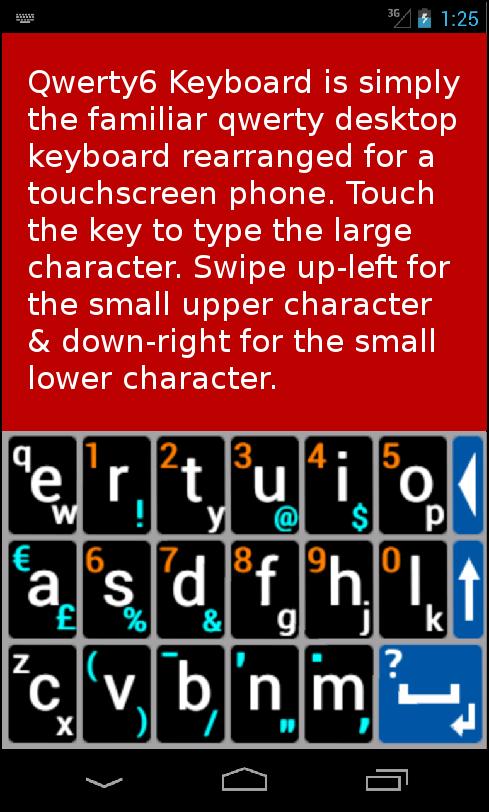
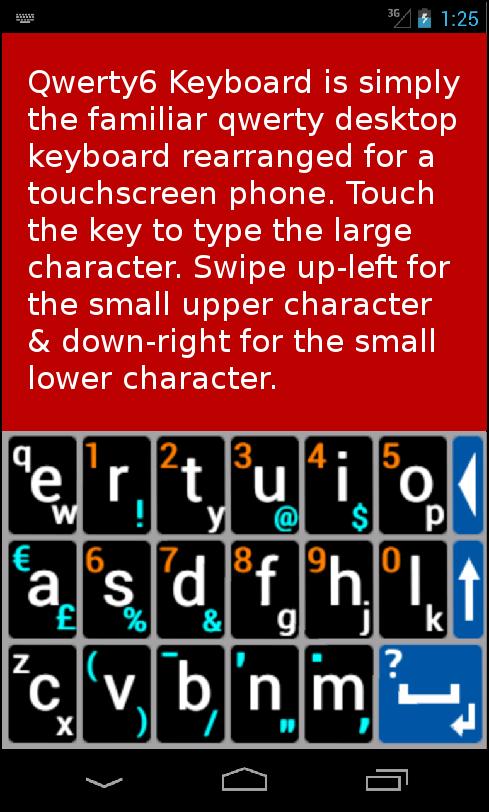
Qwerty6 Keyboard (Q6KB) is the familiar qwerty keyboard with a twist. It puts all the letters in the familiar qwerty order, but it has just 17 big letter keys. Each key tells you how to type its letters:
.
> To type the large letter, touch the key.
> To type the upper character, swipe up-left.
> To type the lower character, swipe down-right.
.
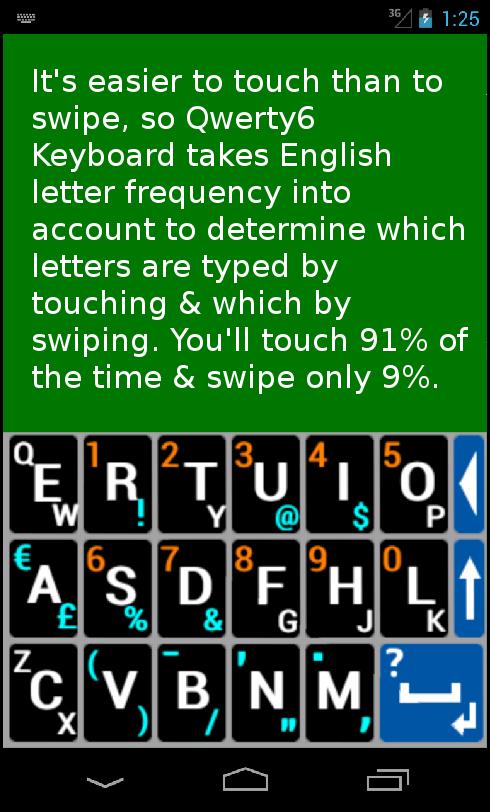
It's a little easier to touch than to swipe, so the designer took the letter frequency of the English alphabet into account when deciding which letters you type by touching & which you swipe. With the help of 10 digits & a few punctuation marks to stretch things out, 14 of the 17 most-used letters became touch letters. So you touch 91% of the time & swipe only 9%.
.
SAFETY
There is no safer app than Q6KB. The warning you'll see when activating Q6KB is the same for all keyboard apps. Only autocomplete keyboards collect your personal information.
.
U S E R - G U I D E
.
TO ACTIVATE (Please read carefully)
> OLDER PHONES: Phone Settings/Locale & text, Language & keyboard, or Language & input. Check Qwerty6 Keyboard. Long-touch in text-box or pull down Notifications, choose Input Method, & check Qwerty6 Keyboard.
> ANDROID 4: Phone Settings/Language & input/Default/Set up input methods. Check Qwerty6 Keyboard.
> ANDROID 5 & 6: Phone Settings/Language & Input/Current keyboard/Choose keyboards. Check Qwerty6 Keyboard.
.
GET STARTED
Put your phone with Q6KB showing next to your PC keyboard. Compare the 3 lines of letters. Notice the location of the numbers & symbol characters. Rotate to landscape mode & note the 6 symbols keys on the right.
.
HOW TO SWIPE
Put your finger on the middle of the key & immediately move it past the letter you want. You have a wide 180-degree arc for swiping. A short, quick swipe is best. Swipe diagonally. You can adjust the minimum swipe length in the Settings. Shorten it if a swipe registers as a touch. Lengthen if a touch registers as a swipe. Use the shortest lengths for the smallest screens.
.
NARROW KEYS
The SHIFT & DELETE keys are very narrow & are meant to be touched in a different way. Don't aim for the center of the key. Aim for the outside edge & touch the rim of the device. These narrow "rim keys" are an experimental feature. Please email us about how they work on your device. (Mention your screen size.)
.
SPECIAL KEYS
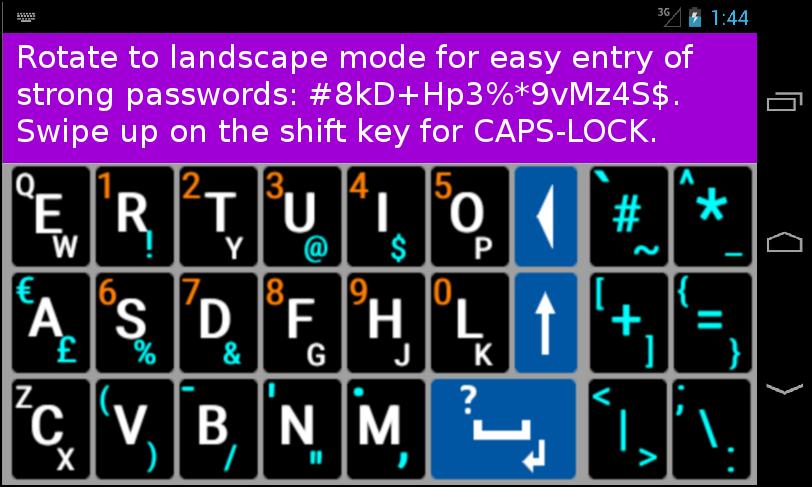
> SHIFT KEY - Touch to toggle caps. Swipe up to turn on caps-lock. Swipe down to turn off caps-lock. Rotate phone to landscape to enter all numbers & symbols.
> SPACE KEY - Touch for a space. Swipe up for a question mark. Swipe down for enter/return or to start a search or indicate you're done. Long-touch for more symbols.
> DELETE KEY - The only key that repeats if you hold it down.
.
POP-UP CHARACTERS
When you long-touch most of the keys, a small pop-up keyboard will appear. Most letter keys have accented letters for Spanish, French, German, Italian, Polish, Dutch, & more. Other keys have miscellaneous symbols.
.
LANDSCAPE MODE
Rotate your phone to landscape for a password keyboard. You can now enter all letters, numbers & symbols on a desktop keyboard without having to switch to a number/symbol keyboard. NOTE: Don't rotate in the middle of a word or password. The unfinished word may be deleted.
.
EXIT THE KEYBOARD
Press your phone's BACK button.
.
MAIN MENU
To get to the Main Menu (Help, Settings, About), go to your phone's Apps drawer & touch the Q6KB icon.
.
MORE HELP
See the screenshots for some tips & http://www.qwertyxkeyboard.com/q6kb.htm for more help.




 Download