• Home
  • Games
    Action-adventure Simulation Business Role Playing Sports Competition Casual Intelligence Card Strategy Music Rhythm Text Puzzle Flying Shooting Love Development
  • Apps
    Business Office Newsletter Social Life Entertainment Online Shopping Practical Tools Travel Financial Management Educational Learning Information Reading Sports and Health
  • Articles

English 中文(简体) 中文(繁体) 한국어 日本語 Português Español Русский العربية Indonesia Deutsch Français ภาษาไทย
Home Apps Practical Tools FUJIFILM Photo Receiver
FUJIFILM Photo Receiver

FUJIFILM Photo Receiver

1
2
3
4
5
Download
  • Version 2.2.0
  • Category Practical Tools
  • Package Name com.fujifilm_dsc.app.photo_receiver
  • Update Time January 16, 2026
  • Size 1018.82KB
About this app

The FUJIFILM Photo Receiver will make uploading pictures to a smartphone a snap.

If your digital camera is equipped for connection to wireless networks, the FUJIFILM Photo Receiver app will make uploading pictures to a smartphone or tablet a snap.

【Notice】

If you are using a smartphone with Android 6.0, set the "Location" of the smartphone and this application to "ON".

[Supported Cameras]

X-T10, X-E2, X-T1, X100T, X30, XQ2, XQ1, X-M1, X-A2, X-A1,

FinePix S1, S9900W, S9400W, S8400W, XP80, XP70, XP200, XP170, F1000EXR, F900EXR, F800EXR, Z2000EXR, Z1100EXR, Z1000EXR

[Smartphone System Requirements]

Android Smartphone/Tablet: Android OS Ver.2.1 to 5.1

[How to use "Send Email to Us"]

1.When the email window is launched, click "Send" without the title and description changed.

2.The link to "Contact Us" website will be sent to you.

3.Please send your inquiries and messages to us via the website.

Thank you for your cooperation.

[Using FUJIFILM Photo Receiver]

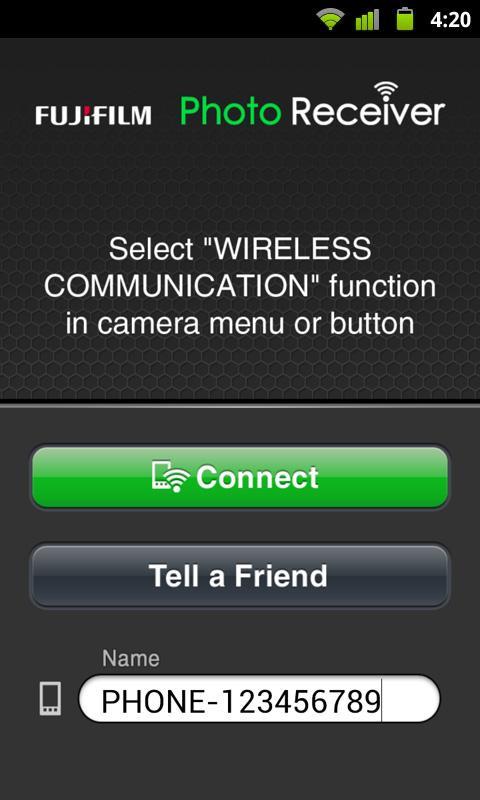
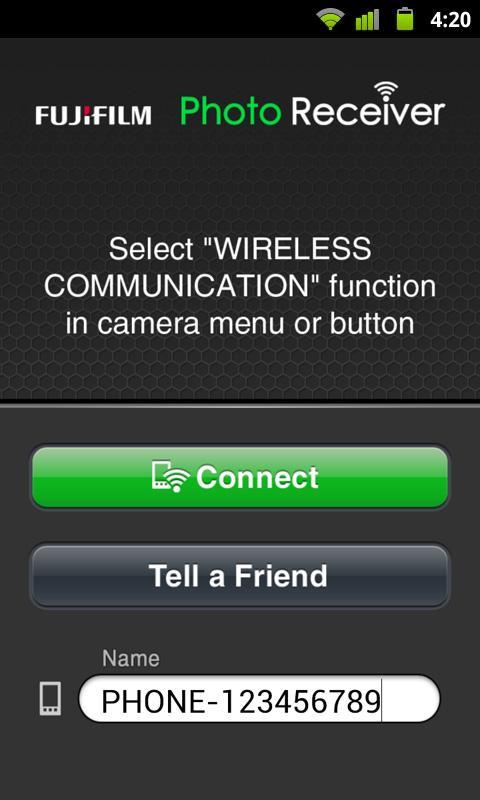
1. Start FUJIFILM Photo Receiver.

2. On the camera, select playback mode and display a picture you want to upload.

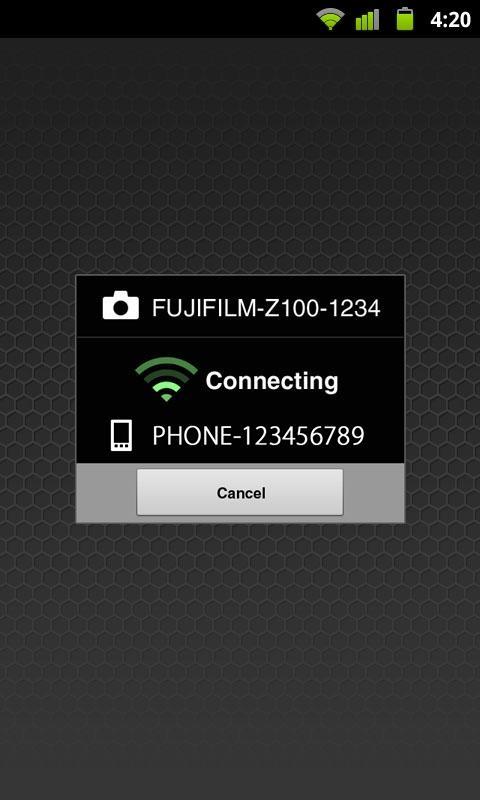
3. Simultaneously tap Connect on the smartphone and the “connect to smartphone” icon on the camera.

4. When the camera locates the smartphone, its name will appear in the camera display.

5. Confirm that the name of the destination smartphone is correct and tap Start sending on the camera.

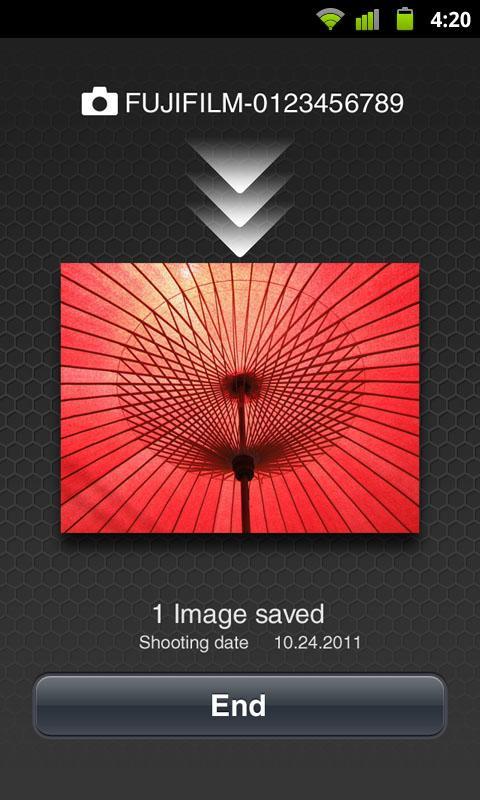
6. To upload additional pictures, display them on the camera and tap the “connect to smartphone” icon. Up to 30 pictures can be uploaded in a single session.

7. To end the session, tap End on the smartphone or BACK on the camera.

8. The app can be launched by pressing the SNS button.
What's New in the Latest Version 2.2.0

Last updated on Aug 11, 2015 Support for Android5.0, 5.1.
Added supported cameras.
Download(1018.82KB)
Users also viewed
  • NFC Basic

    NFC Basic

    3.0 March 3, 2026
  • Wegmatten

    Wegmatten

    1.4 March 3, 2026
  • Neon Keyboard for Galaxy Y

    Neon Keyboard for Galaxy Y

    1.279.1.93 March 3, 2026
  • Live Wallpaper Creepy Crawlies

    Live Wallpaper Creepy Crawlies

    1.8 March 3, 2026
  • Random name picker for raffles

    Random name picker for raffles

    2.1.2 March 3, 2026
  • Root Checker N Info

    Root Checker N Info

    2.0.5 March 2, 2026
  • UR 3D Solar System Live Theme

    UR 3D Solar System Live Theme

    9.06.4.1 March 2, 2026
  • Mirror Photo - Mirror Pic

    Mirror Photo - Mirror Pic

    1.0 March 2, 2026
  • My Battery Drain Analyser

    My Battery Drain Analyser

    0.941 March 2, 2026
  • Theme for Lg Home- Lollipop

    Theme for Lg Home- Lollipop

    1.2 March 2, 2026
  • Mask of zorro Protector Theme

    Mask of zorro Protector Theme

    1.0.0 March 2, 2026
  • Radar de Huracanes

    Radar de Huracanes

    2.7 March 2, 2026
  • Labrador Lock Screen

    Labrador Lock Screen

    5.0 March 1, 2026
  • Kitchen Set Minimalis

    Kitchen Set Minimalis

    1.0 March 1, 2026
  • Go Elegant Minimalistic

    Go Elegant Minimalistic

    1.0 March 1, 2026
About Privacy Policy Terms of Service Cooking Policy

© Copyright 2017-2026 downzq.com