
Read secret messages like the Bletchley Park codebreakers of World War II!
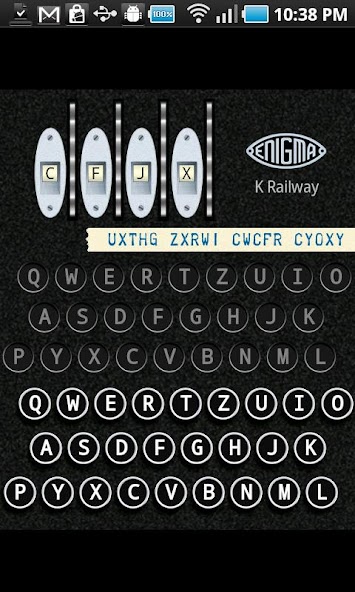
Designed to give the experience of using a real Enigma machine, as far as possible within the limitations of a flat screen. On smaller devices like phones, the layout is "scrunched up" to make best use of the space available; on bigger devices such as tablets, the spacing between the keys and indicators is more realistic.
Extracts from the User Guide:
Turning the rotors
To change which letter is showing, push/drag the serrated wheel at the right of each letter up or down to rotate the ring and the scrambling wiring inside it.
Pressing the keys
Pressing and holding a key does three things:
1. The right-hand rotor moves round by one step. In certain positions some of the other rotors may also move.
2. In the middle part of the machine one of the lamps marked with a letter lights up. This shows the enciphered result of the letter you pressed.
3. The enciphered letter is also printed on a paper tape, shown just above the lamps. Only a few real Enigma machines had a printer, but we have included it so you can use it for some cool things in the simulator.
Encrypting your first message
Turn each of the rotors so that a particular set of letters that you choose is showing. These letters are your message key; you should remember them or write them down so you will be able to decrypt your message.
If you already have some letters printed on the paper tape, click on the tape and then select "Clear" to tear it off and start again.
Type a short message using the keys in the lower part of the machine. For real machines without a printer there would usually have been two operators, one to press and hold the keys and the other to write down which letters lit up, but you don't need to do that.
Your encrypted message is now printed on the paper tape.
Decrypting your first message
First, turn the rotors back so your original message key letters are showing in the windows. The process for decrypting a message is identical to encrypting; in cryptography terms the mechanism is reciprocal.
Now you have a choice: you can read the encrypted message letters back off the paper tape and press the keys one by one, as a real Enigma machine operator would have done, or you can take a shortcut:
* Click on the tape and select "Copy" to have the simulator remember the printed message.
* Click on the tape and select "Clear" (if you like, this is not essential).
* Click on the tape and select "Paste" to have the simulator type the encrypted message in for you.
You should see the message that you typed originally now printed on the paper tape. Success!
Changing Simulator Options
You can change some of the ways in which the simulator works. Press the "ENIGMA" logo in the upper right part of the machine to get a command menu (also available via the menu button) and select "Options".
Machine Settings
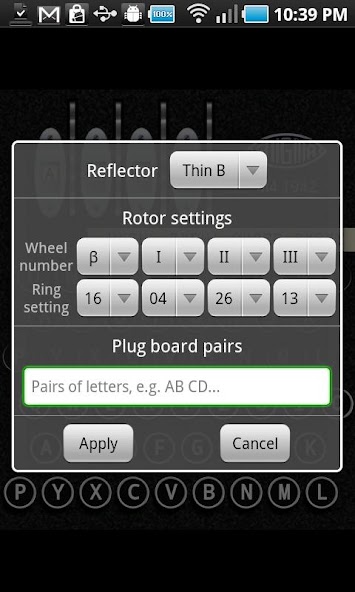
If you want your encrypted message to be decrypted on another machine, both machines must have the same internal configuration settings. To set up the internal configuration of your virtual Enigma machine, choose "Settings" from the command menu.
Saving and loading
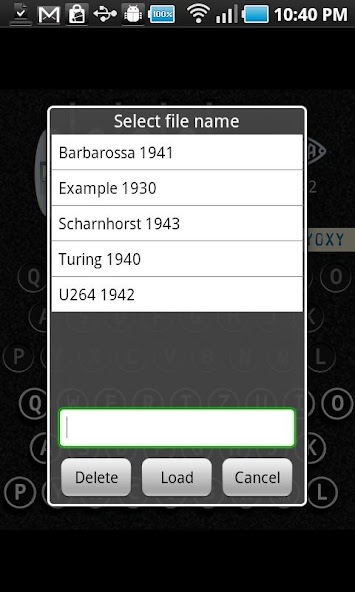
There are a several save files pre-installed containing the settings and message keys for various real Enigma messages. You can delete these if you don't want them.
The "About" screen
When first installed, the simulator will show adverts on the screen alongside your machine. The "About" selection from the command menu takes you to a screen with a button you can press to make a small payment to remove the advert displays; this payment includes a donation to the Bletchley Park Trust, dedicated to preserving the site where codebreakers including Alan Turing worked to crack the Enigma codes in World War II.





 Download